
Setup in under 5 minutes
How to set up your ReviewReach tag
Follow these two short sections to point your tag's QR code and NFC chip to your Google review link. You'll only do this once.
Section 1 — Set or change your QR code link
Your tag's QR code is managed through nfckin.com. Create a free account so you can update the link anytime — handy if your Google review URL ever changes.
1
Scan the QR code on your tag
Open your phone camera, point it at the QR code, and tap the popup to open www.nfckin.com. Use the language selector in the top-right corner if you'd like a different language.
2
Register a free account
Tap Login / Register and create an account. Save the email and password somewhere safe — you'll use it any time you want to change your redirect link.
3
Open “Activate Product”
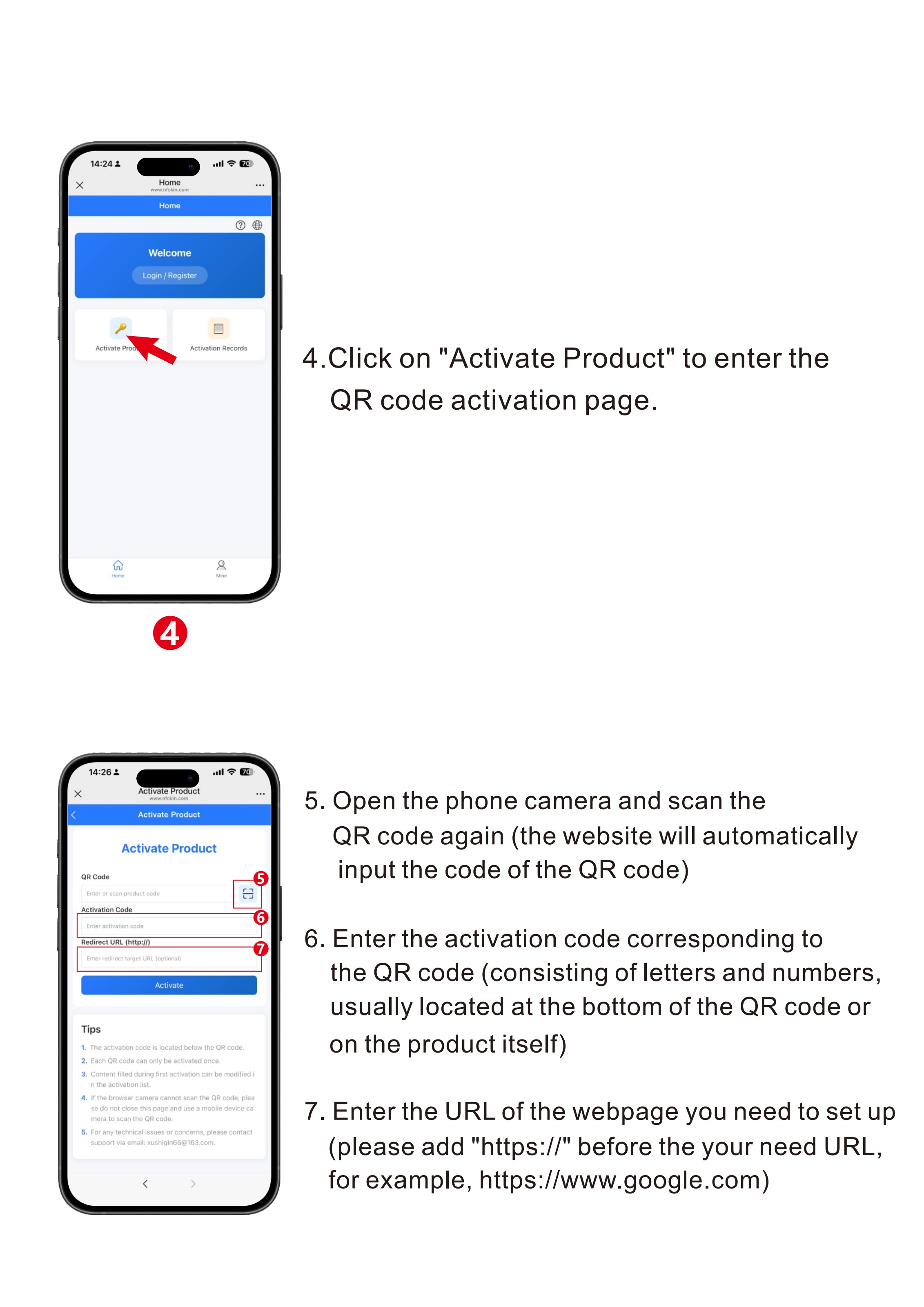
Once logged in, tap Activate Product to open the activation page.
4
Scan the QR code again
From the activation screen, scan the QR code on your tag once more. The site auto-fills the QR Code field for you.
5
Enter the activation code
Type the activation code printed on the back of the tag (a short combination of letters and numbers).
6
Paste your Google review link
Enter your full Google review URL in the Redirect URL field — make sure it starts with
https://. Tap save and you're live.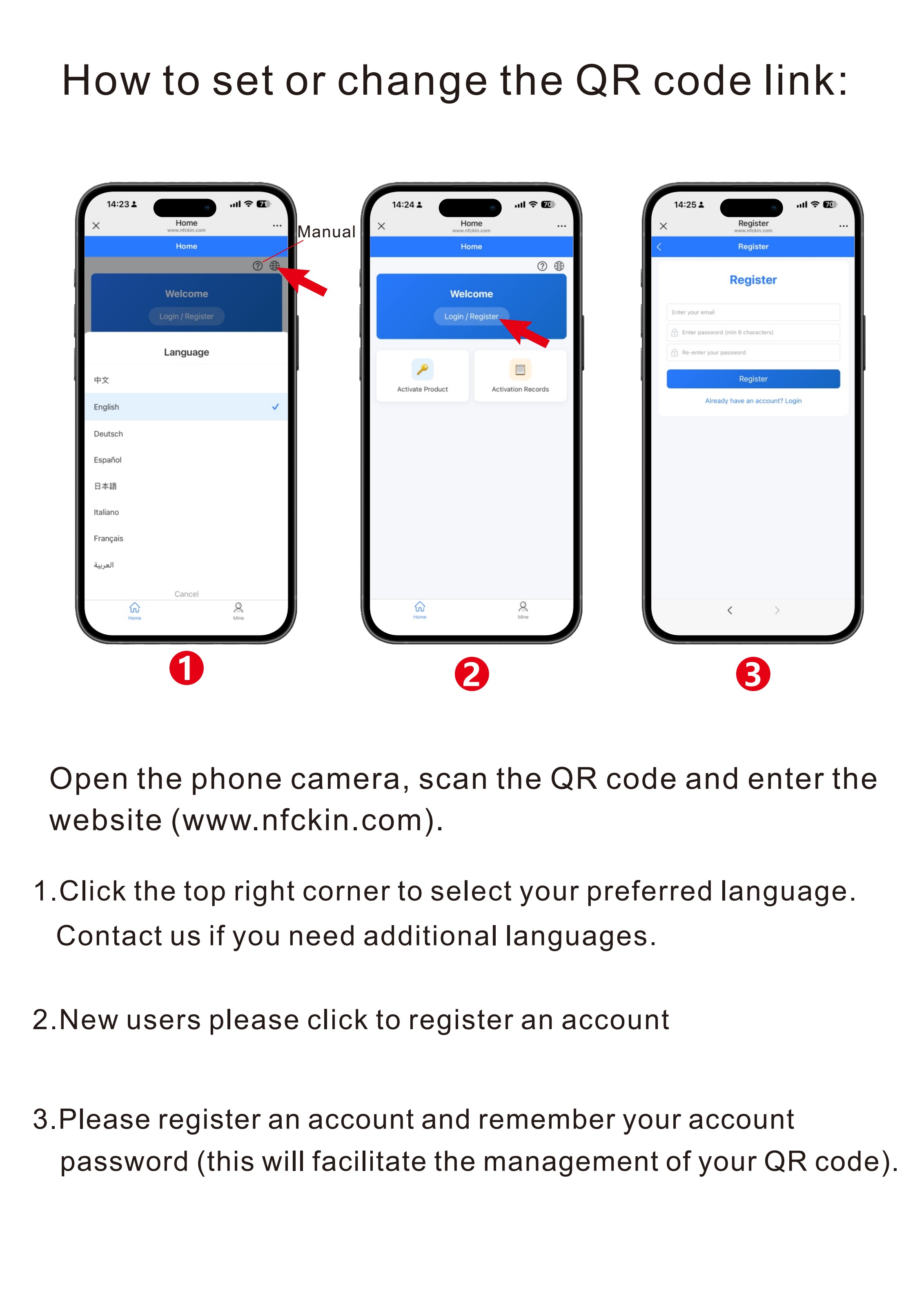
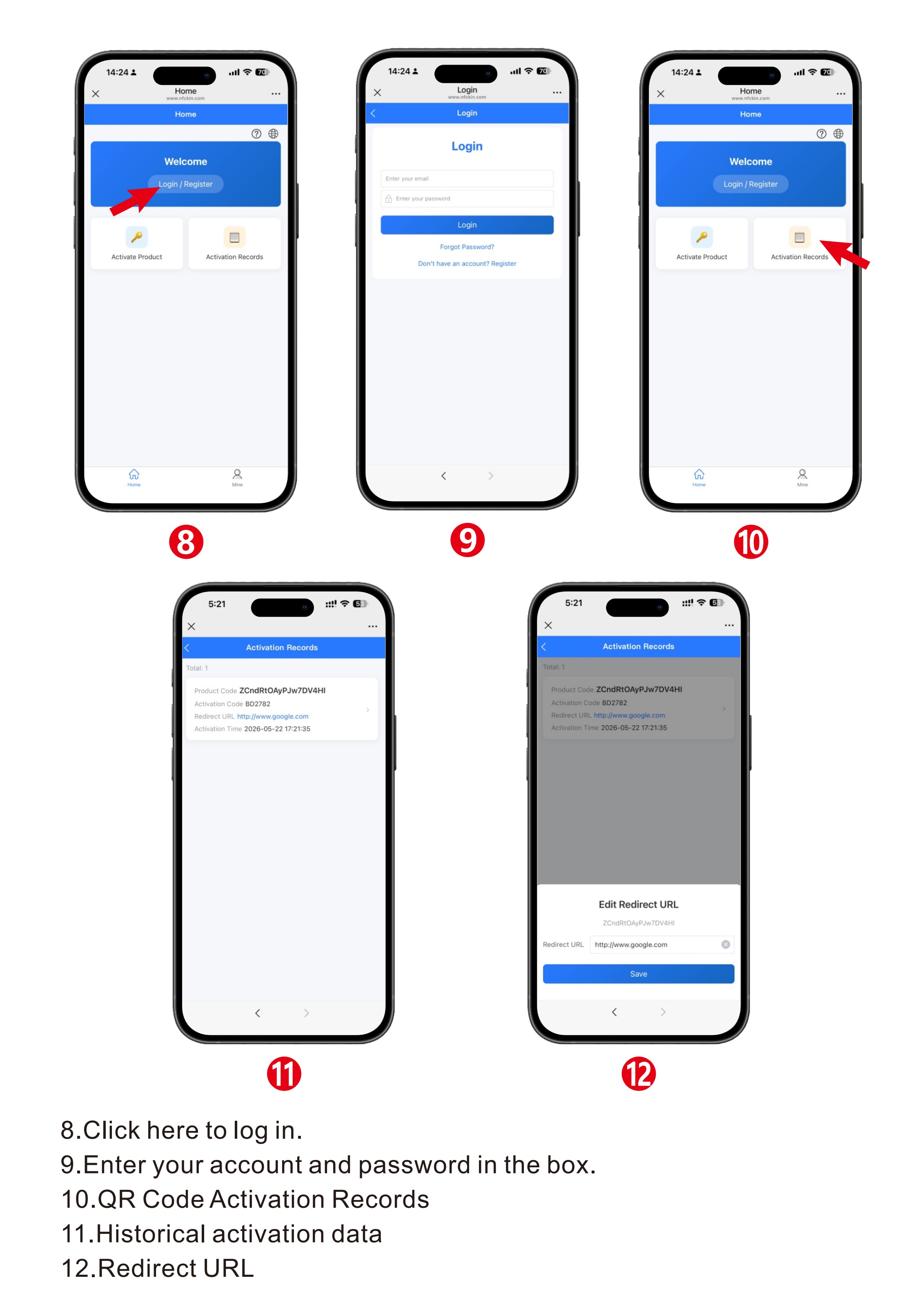
Tip: To change the link later, just log in to nfckin.com → Activation Records → tap your tag → Edit Redirect URL.
Section 2 — Program the NFC chip
The NFC chip lets customers tap their phone on the tag to open your review page instantly — no scanning required. You'll need a phone with NFC (most modern Android and iPhones) and the free NFC Tools app.
1
Install NFC Tools
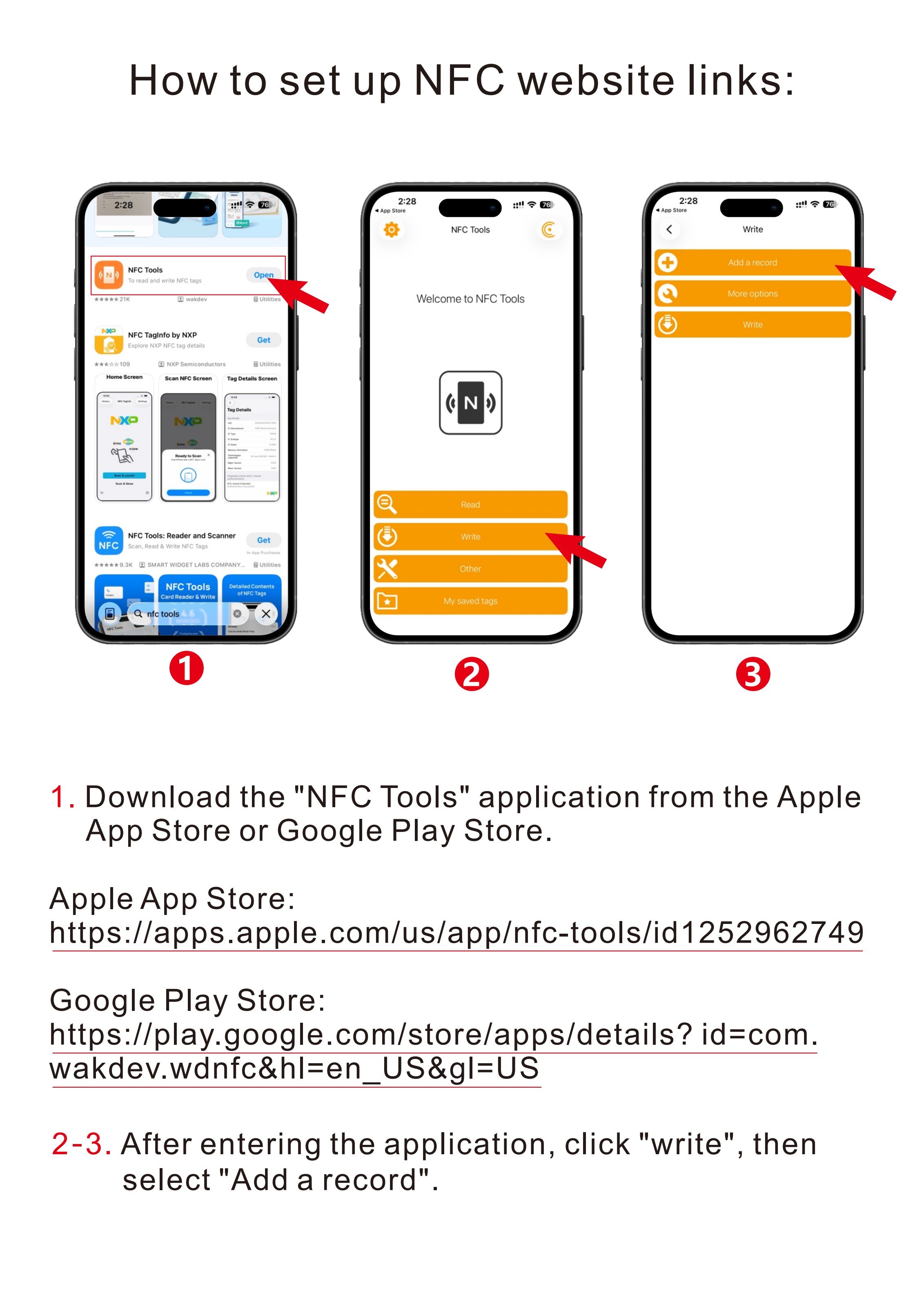
Download NFC Tools from the App Store or Google Play using the buttons above.
2
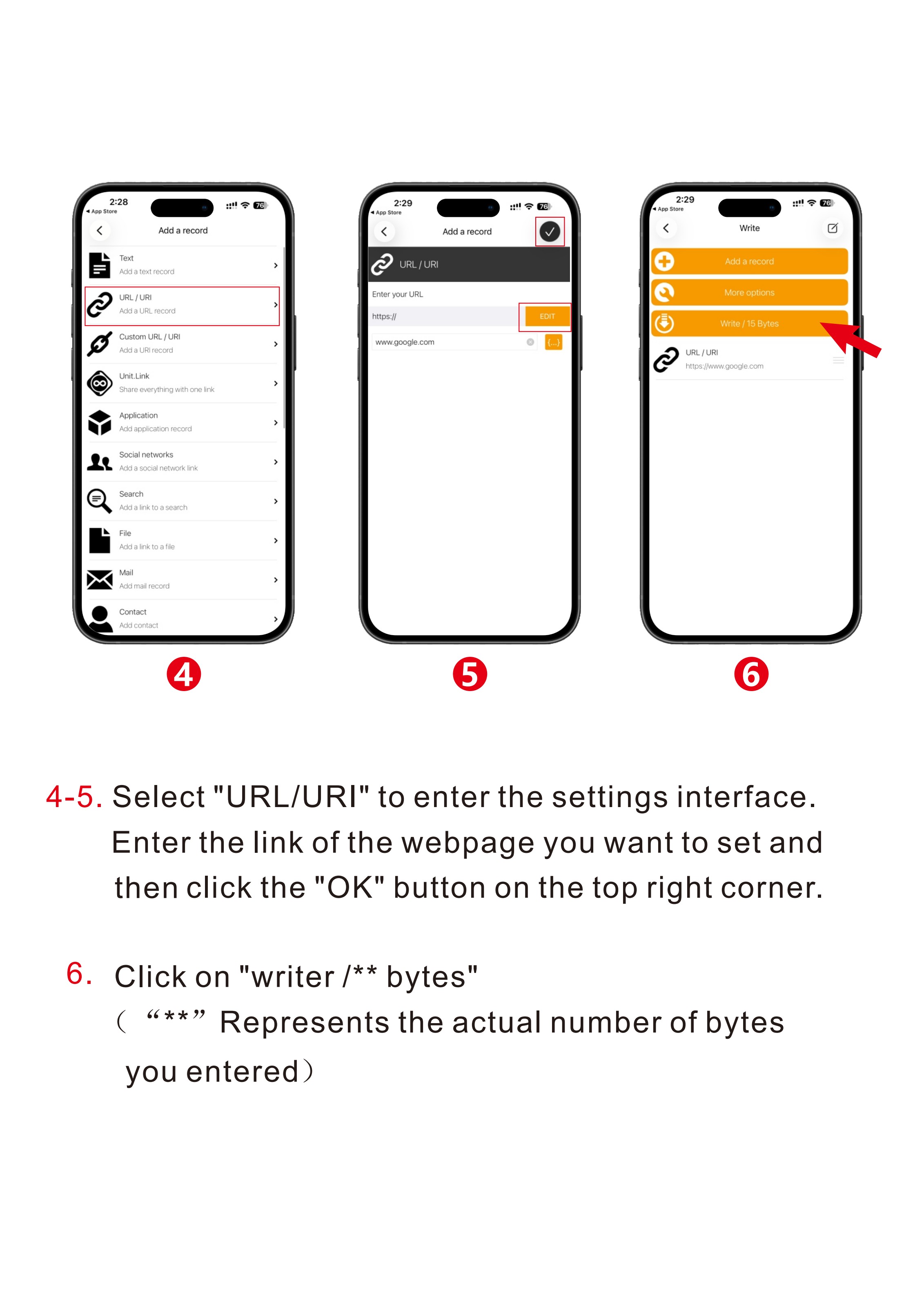
Open “Write” → “Add a record”
In the app, tap the Write tab at the bottom, then choose Add a record.
3
Choose URL / URI
Select URL/URI, paste your Google review link (starting with
https://), then tap OK in the top right.4
Tap “Write /** bytes”
Back on the Write screen, tap the Write button. The app will count the bytes and stand by for your tag.
5
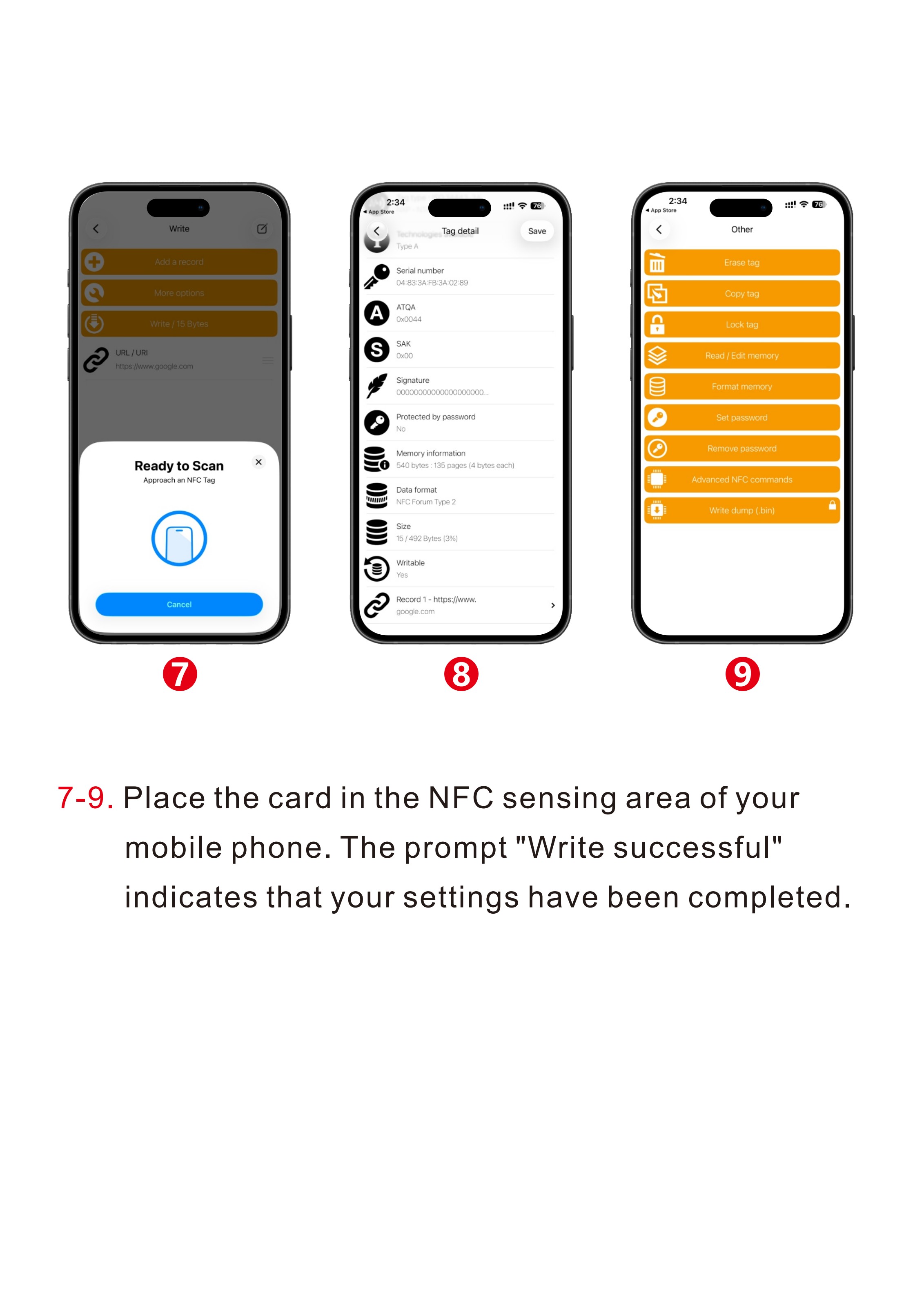
Hold your tag to the phone
Place the ReviewReach tag flat against the back of your phone (NFC sensor area). Hold steady for a second or two.
6
“Write successful” 🎉
When you see the success message, you're done. Test it by tapping the tag with any NFC-enabled phone — your review page should open instantly.
Need a hand?
We're happy to help you get set up. Email us and we'll walk you through it.
support@reviewreachau.com